The best offline crew roster app: what to use when Wi-Fi fails
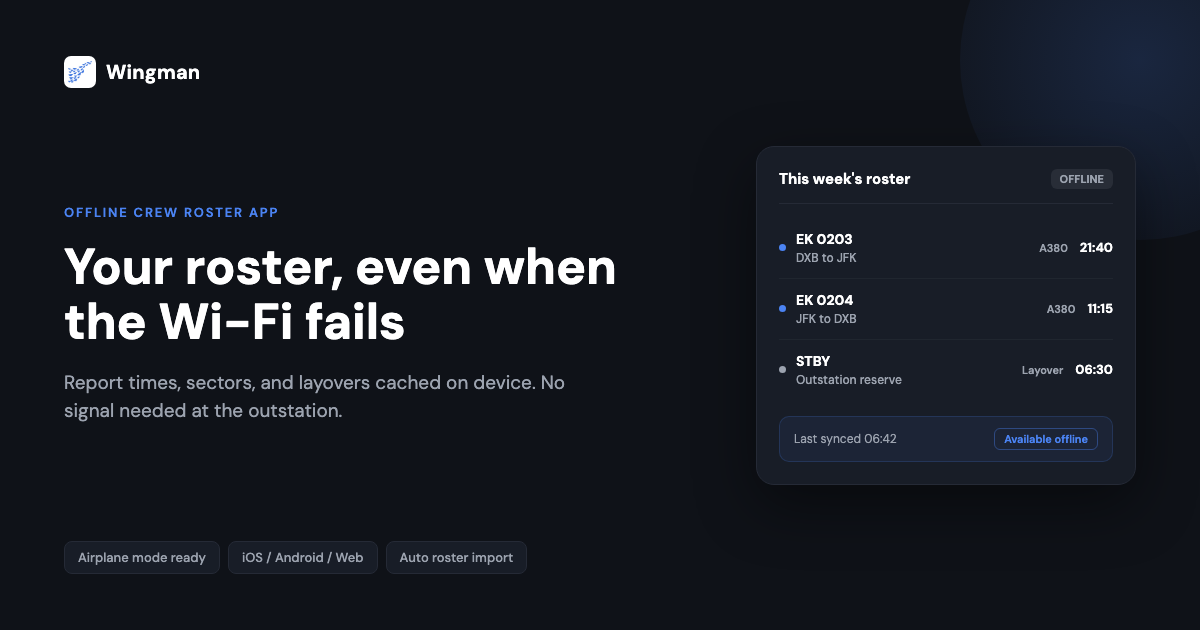
Crew life does not pause for a bad connection. Your report time is your report time whether or not the hotel Wi-Fi is working, whether or not the outstation has a signal, and whether or not your phone drops to no bars in the middle of a crew transport. The one thing that cannot be negotiable is access to your schedule, which is exactly why an offline crew roster app matters.
Most crew apps work well in a city with good data. Far fewer were designed for the operational realities of airline life: blocked Wi-Fi on long-haul sectors, dead zones in remote airports, and the specific problem of a layover hotel where the internet drops at midnight before an early departure. If you fly internationally, you meet these conditions constantly, often in places where buying local data is slow or impractical.
This guide covers what offline access actually means in a roster app that works offline, what to look for, and how Wingman handles the exact scenarios where crew lose connectivity.
Why an offline crew roster app is not optional
Consider the specific situations where crew need their roster and the internet is unavailable or unreliable.
Outstation layovers. Many outstations, particularly smaller regional airports and some international layover hotels, have patchy or slow connectivity. A 03:00 wake-up with no data and a roster app that needs a live connection is not a minor inconvenience. Crew who fly into the region regularly can check which carriers Wingman supports in the Middle East airlines guide before they travel.
Airside transit. International airside transit areas frequently have no free Wi-Fi, or Wi-Fi that asks for a local phone number or payment method you do not have. Crew connecting through an unfamiliar hub may have no connectivity at all for several hours.
Crew transport. The bus to the aircraft, the hotel shuttle, or the crew car on a regional turnaround often has no reliable internet. If you did not check your report time before boarding the transport, you need to be able to check it now.
Dead zones in crew rooms. Older airport infrastructure, certain terminal buildings, and below-ground crew facilities often have poor cellular coverage. Your schedule should not depend on finding the one corner of the room with two bars of signal.
What offline access actually means
Not all offline modes are the same. There is an important difference between two approaches, and it decides how much you can trust what you see.
Passive caching. The app stores whatever happened to be on screen the last time you had connectivity. If you checked your roster three days ago and have not opened the app since, you will see three-day-old data offline. That is better than nothing, but it can be unreliable if your schedule changed in the meantime.
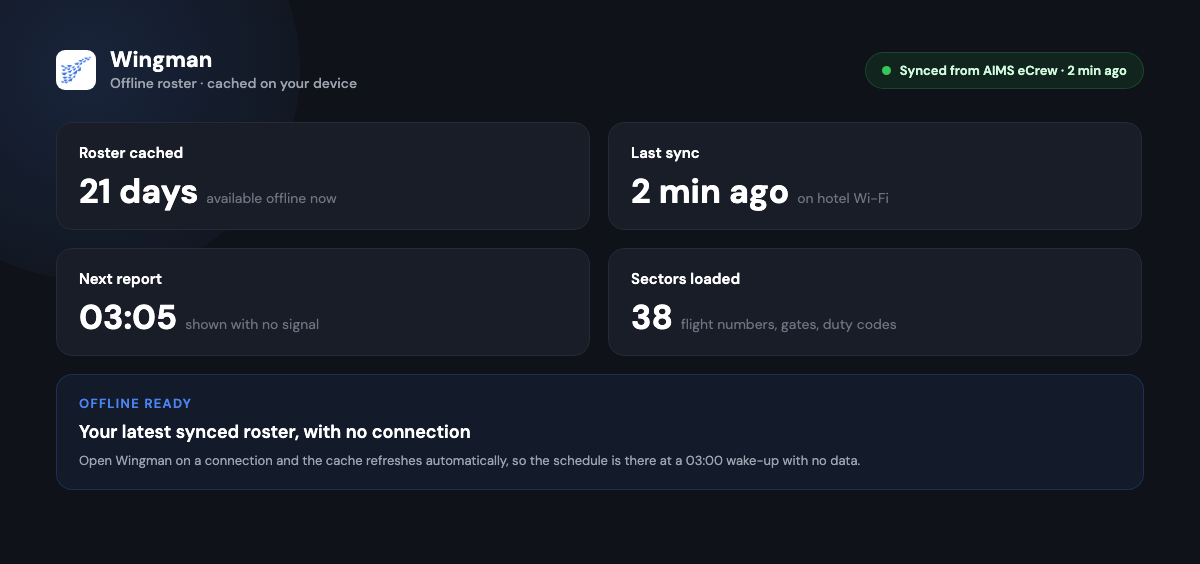
Active offline access. The app caches your roster every time you sync and presents the latest saved version immediately on open, even with no connection. The data you see offline is always the most recent version you synced when you last had internet, and the app shows you when that sync happened, so you always know what you are working from.
Wingman is built on the second approach. Because rosters are imported automatically from your airline’s scheduling system, the cache is refreshed whenever you open the app on a connection, rather than relying on you to remember to save a screen.
How Wingman’s offline mode works
Wingman’s offline capability works through a deliberate sync and cache process.
- Open Wingman on any device with an internet connection, whether iOS, Android, or web.
- Let the app import your latest roster. Wingman pulls the current version from your airline’s scheduling system and saves it to the device. [VERIFY]
- Go offline. Your loaded roster, including flight numbers, report times, aircraft types, layovers, and duty codes, is available with no internet connection. [VERIFY]
- When you reconnect, Wingman updates your roster data in the background. [VERIFY]
You do not need to think about this. If you open the app while connected before a trip, your offline roster stays current. The last sync time is visible in the app, so you know exactly how fresh your data is.

What you can see offline
When Wingman has no internet connection, the following is available from the cached roster: [VERIFY]
- Full roster with flight numbers, report times, and duty codes
- Aircraft type for each sector
- Departure and arrival airports
- Layover details and overnight information
- Crew pairings, where loaded
- Your entire loaded roster period, including multiple weeks
You can view the whole week or more, not just today’s duty. Whatever was loaded during your last sync is accessible.
Works on every platform
Wingman’s offline capability is not limited to one operating system or device type. It is available on:
- iPhone and iPad on iOS
- Android phones and tablets
- The web app in any browser on Windows, Mac, or another device
This matters for crew who check their schedule on a hotel tablet, a shared device, or a borrowed laptop during a layover. The web app at app.wingmanlog.com holds the same cached roster as the mobile apps, provided you synced while connected. [VERIFY]
What happens in specific scenarios
Hotel Wi-Fi drops at midnight before an early departure. If you synced your roster during the day, your report time and departure details are cached and accessible immediately, whatever the hotel connection does overnight.
Airplane mode during a flight. Wingman works in airplane mode. Your most recently synced roster is available in full, and switching to airplane mode does not clear cached data. [VERIFY]
You reinstall the app. Cached offline data is cleared on reinstall. When you log back in on a connection, your roster reloads. The one case where offline data is unavailable is immediately after a fresh reinstall, before your first sync. [VERIFY]
You get back online after a long layover. Wingman updates your data in the background when the connection returns. You do not need to trigger a manual refresh unless you want to force an immediate update. [VERIFY]
How Wingman compares to other apps offline
The detail to watch in any comparison is how the offline cache is filled in the first place.
RosterBuster. It caches data once a sync has completed, so offline reliability depends on whether that sync worked. If an import did not complete, the data held offline may not be current. Confirm the current behaviour against the provider before relying on it. [VERIFY]
CrewLounge. A manually uploaded roster is stored locally and is accessible offline once imported. If your roster changed since your last manual upload, you are working from older data offline. Confirm the current behaviour against the provider before relying on it. [VERIFY]
Wingman. Automatic import from your airline’s scheduling system means that whenever you have a connection and open the app, the latest roster is pulled and cached, and offline access draws from that automatically maintained cache. Wingman imports from systems including AIMS eCrew, NavBlue RAIDO, CAE Crew Access, ARMS, CESAR, Sabre, FLICA, and PDC CrewConnex.
Tips for staying offline-ready as crew
Sync before every trip. Before heading airside, open Wingman on a good connection and let it import. Your roster for the trip period will be cached and accessible without internet for the duration.
Check the last sync timestamp. Wingman shows when the last sync happened. If you are about to go offline for an extended period, confirm the sync is recent enough that any schedule change is reflected.
Use the web app as a backup. If your phone battery is low or you are on a borrowed device, app.wingmanlog.com works in any browser. Log in on a connection, let it sync, and the cached data is available for that session.
Treat the app like a safety-critical tool. Crew would not open a chart app for the first time during a flight. Apply the same logic to your roster app: open it, sync it, and confirm your schedule before you need it.
Getting started with Wingman
Wingman is used by 30,000+ pilots across 400+ airlines, with regulator-compliant exports for authorities including the FAA, EASA, UK CAA, GCAA, DGCA, GACA, NZCAA, HKCAD, CASA, and CAAS. The free tier covers up to 250 logged hours, so you can start without committing anything up front. Pro is $59 a year, billed annually, with the same roster import and offline access across iOS, Android, and web.
- Download from the App Store or Google Play, or open app.wingmanlog.com.
- Create a free account.
- Select your airline from the 400+ supported.
- Open the app on a connection and let your roster import before your next trip.
- Your roster is now available offline for the loaded period.
Frequently asked questions
What is the best offline crew roster app for unreliable Wi-Fi?
Look for active offline access rather than passive caching: an app that imports your roster automatically and presents the latest synced version immediately, even with no connection. Wingman caches your roster whenever you open it on a connection and shows the last sync time, so you always know how current your offline data is.
What can I access in a roster app that works offline?
With Wingman you can see your full loaded roster offline, including flight numbers, report times, aircraft types, layovers, crew pairings, and duty codes. You can view the entire loaded period, not just the current day. [VERIFY]
Does Wingman work in airplane mode?
Yes. Your most recently synced roster is accessible in airplane mode, and switching to flight mode does not clear cached data. [VERIFY]
Do I need to manually save my schedule before going offline?
No. Wingman caches your latest imported roster automatically. If you opened the app recently while connected, your roster is already saved for offline use. [VERIFY]
Is offline access available on iOS, Android, and web?
Yes. The cached roster is available on iOS, Android, and the web app at app.wingmanlog.com, provided you synced while connected. [VERIFY]
Summary
Offline access is not a feature to be added later. It is a basic operational requirement for airline crew. An app that only works when Wi-Fi is available is not really a crew roster app, it is a liability the first time you lose signal before a duty.
Wingman is built around the specific scenarios where crew lose connectivity: outstations, airside transit, crew transport, and a hotel room at midnight before an early departure. The cached roster is the most recent imported version, available across iOS, Android, and web, with no manual save required. You can try it free for up to 250 hours at app.wingmanlog.com.
← All articles